In this blog post article, I’ll guide through an easy way of Finding Tasks Ahead of Schedule. For example, if you have a task that was supposed to be 50% completed by a certain date, but is actually 75% done, that task is considered ahead of schedule. Let’s dive into the steps to easily locate such tasks.
If you would rather watch a YouTube video on this subject, click here or click the thumbnail below.
Finding Tasks Ahead of Schedule: Background Information
To locate tasks that are ahead of schedule, you need to make sure you have set the Status date for your project. The Status date represents the last day of last week’s reporting period. Generally, the Status date is last Friday, Saturday, or Sunday.
To find tasks that are ahead of schedule, you need to identify tasks whose progress bar extends beyond the Status date. The progress bar, by the way, is the darker blue bar running through the middle of each Gantt bar in the Gantt Chart view, such as shown in the following illustration. The red dashed vertical gridline, by the way, represents the Status date for the project.
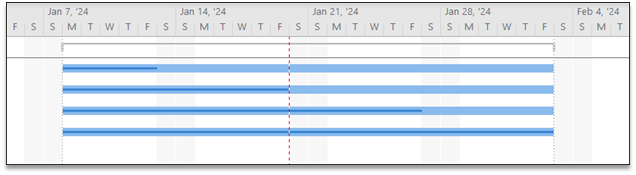
In the preceding illustration, notice how the progress bar for the third and fourth tasks extends to the right of the Status date gridline. These two tasks have progress that is ahead of schedule. To locate tasks like this, I need to determine the date on which progress bar ends for each task, and then filter for tasks whose progress bar ending date is greater than the Status date of the project. But how can you find out the date on which the task’s progress bar ends?
Amazingly enough, Microsoft Project offers a default column containing this very information: the Stop column. The Stop column displays the date on which the progress bar ends for each task. So, In theory, all I should need to do is to create a filter that tests for the Stop date being greater than the Status date.
But no, it’s not that easy! This is because you cannot filter for the Status date in the Filter Definition dialog, as it is not an available field. In this dialog, you can only filter for Task information, but the Status date is Project information. But I have a trick to show you, which is to create a custom Date field that captures the Status date of the project and displays it for every task.
Creating a Custom Date Field
Complete the following steps to create the custom Date field:
- Click on the Project tab to display the Project ribbon.
- Click the Custom Fields button to open the Custom Fields dialog.
- Click the Type pick list button and select the Date item on the list.
- Choose an available Date field, such Date 1, and then click the Rename… button.
- In the Rename Field dialog, enter a name such as Status Date 2, and then click the OK button.
- Click the Formula button to display the Formula dialog for the custom Date field.
- Enter [Status Date] in the Formula dialog and then click the OK button.
- Select the Use formula option in the Calculation for Task and Group Summary Rows section of the dialog.
- Click the OK button to create the custom Status Date 2 field.
At this point, the custom Status Date 2 field is ready to use.
Creating and Applying the Custom Filter
Complete the following steps to create a custom filter to locate tasks whose progress is ahead of schedule:
- Click the View tab to display the View ribbon.
- Click the Filter pick list button and select the New Filter item.
- Name the new filter Progress in the Future.
- Select the Stop field in the Field Name column, select the “is greater than” value in the Test column, and use the Status Date 2 field in the Value(s) column.
- Select the Show related summary rows checkbox and then click the Save button to create the filter.
In the More Filters dialog, select the new custom field and click the Apply button. Microsoft Project will now display only those tasks whose progress is ahead of schedule.
Saving the Custom Filter and Field for Future Projects
To use the custom Date field and the custom filter in all current and future projects, complete the following additional steps:
- Click the File tab to display the Backstage.
- Click the Info tab and then click the Organizer button.
- In the Organizer dialog, click the Filters tab, select the custom Progress in the Future filter in the list on the right side of the dialog, and click the Copy button.
- Click the Fields tab, select Status Date 2 custom field in the list on the right side of the dialog, and click the Copy button.
- Click the Close button to close the Organizer dialog and then press the Escape key on your computer keyboard to exit the Backstage.
You have just saved both the custom filter and custom field in your global .MPT file, which will allow you to use them in all current and future projects.
Now, you have the tools to quickly locate tasks with progress ahead of schedule in any project you manage. If you have questions, please add them in the “Leave a Reply” section below. Or if you watched the video, add your questions or comments there. Please subscribe to my YouTube channel and leave “Likes” if you like the videos.
If you would like to have a formal class on using Microsoft Project, here is a link for my classes.

Dale Howard
Microsoft Project MVP “20 Years”
About Me
Hello there Microsoft Project lovers! I’m Dale Howard and I’ve been a Microsoft Project MVP (Most Valuable Professional) for 20 years in a row and I’m currently one of only 26 Project MVPs in the entire world. Pretty exciting, right!?
If you post a question about any of Microsoft’s PPM tools on the public message boards, look to see who the moderator or person that has answered the questions and you see, it’s frequently me answering your questions. Some people like to golf, I love Microsoft Project helping the community get to understand Microsoft Project much better.
I’ve been teaching students at all levels for over 20 years and have taught thousands of users around the world. I’ve written and co-authored 23 books on Microsoft Project, Project Server, and Project Server so if you’re like me and like to read over watching a video, you can Check Out My Books on Amazon.
For the people that like to watch videos, check out my YouTube channel. If you post a question in the comments, I’ll be happy to answer questions or create a new video to answer your question.
If you’ve got a question about Microsoft Project, Project Server, check out some of these community post areas below where I am the moderator and have been answering questions on these message boards for over 20 years.
Microsoft Tech Community
Reddit Project Server Community
LinkedIn Project and Planner Group
My Students Include:




Latest Posts
-
Project Summary Task in Microsoft Planner
Learn how to create a Project Summary Task in Microsoft Project for the Web with this helpful workaround. Discover the step-by-step guide that brings the much-loved feature from the desktop application to the web platform, providing you with a valuable high-level overview for effective project management.
-
Import a Microsoft Project File into Microsoft Planner
To help you in your organization’s transition from the Microsoft Project desktop app to the new Project for the Web, I will teach you how to Import a Microsoft Project File into Project for the Web. I will also explain the limitations of the import process.

-
Export to Excel from Microsoft Planner
Discover a helpful workaround to Export to Excel from Project for the Web, allowing you to bypass printing limitations and create printable Excel workbooks for easier reporting. Learn how to navigate the Excel workbook and find practical tips in this engaging guide.

-
Export Your Project in Microsoft Planner to a PDF Document
To help you with reporting on your Project for the Web projects, I will show you how to export your project to a PDF file.

-
How to Use the Checklist Feature in Microsoft Planner
Learn how to harness the power of the new Checklist feature in Project for the Web.