
Microsoft offers more than one project management tool, and the steps to add or hide columns depends on which one you’re using.
This article focuses primarily on Microsoft Project (desktop), where you have full control over adding, removing, and customizing columns.
If you’re using Planner (Premium) (formerly known as Microsoft Planner), column behavior works differently. A separate section below covers those steps and includes Dale’s video walkthrough.
How to Add (Show) a Column in Microsoft Project (Desktop)
- Switch to a view that includes a task table (for example, the Gantt Chart view).
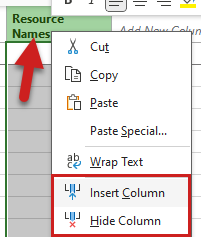
- Right-click the column heading to the right of where you want to insert the new column.
- Select Insert Column.
- Choose the field you want to add from the list.
The column is now visible in the table for the current view.
How to Hide Columns in Microsoft Project (Desktop)
Quick Note: Hiding columns does NOT Delete them from the project, just hides them. There’s a couple links below for learning more about views, tables and saving your favorites.
- In the same view, right-click the heading of the column you want to remove.
- Select Hide Column.
The column is hidden (not deleted) from the current view and table.
💡 Tip: Understand What You’re Really Changing
When you show or hide a column in Microsoft Project, you’re modifying the table used by the current view — not just the view itself.
If multiple views use the same table, those column changes will appear in all of those views. To avoid unexpected changes, consider creating a custom table before adding or removing columns. (Link below)
Want to learn more?
Check out these essential videos that walk through creating and managing custom tables in Microsoft Project:
- Add New Columns as a Virtual Column in Microsoft Project
- Save Your Favorite Views and Tables in Microsoft Project
How to Add or Remove Columns in Planner (Premium)
Planner (Premium), formerly known as Microsoft Planner, uses a more structured approach to columns than Microsoft Project (desktop).
When you start a new project, the software provides you with a set of default columns, including Quick Look, Assign To, and Duration. However, as your project evolves, you might find that these default columns don’t quite align with your needs. That’s where the flexibility of adding and removing columns comes in handy.
Removing Columns
- Select the Column to Remove: In the grid view, locate the column header you want to remove.
- Hide the Column: Click on the column header, and a menu will appear. Choose the option “Hide Column.” This will remove the selected column from your view.
Adding Columns
- Expand the Column Options: Look for the “Add Column” option, often displayed as a column header.
- Choose Column Type: You’ll have the choice to create a new custom column or select from default columns that are available. These default columns cover various project management aspects.
Recommended Columns for Different Stages
Now, let’s delve into which columns are recommended for each stage of the project management life cycle:
- During the Task Planning process, do the following:
- Remove the Quick Look and Assign To columns
- Add the Start Date, Finish Date, Dependents (after) and Depends On columns
- During the Assignment Planning process, do the following:
- Remove the Dependents (after) and Depends On columns
- Add the Assigned To and Effort columns
- During Execution stage, do the following:
- Remove the Assign To and Effort columns
- Add the Percent Complete, Effort Completed, and Effort Remaining columns
Feel free to mix and match these columns to align with the specific requirements of each stage
Customizing Your View for Efficient Project Management
- Use the following tailored Task Progress tracking method:
- Use “Percent Complete” to track task progress.
- “Effort Completed” and “Effort Remaining” provide insights into effort distribution.
- Assigning Resources:
- Utilize the “Assigned To” column to allocate tasks.
- Enter work “Effort” required for each task.
Share the Knowledge
If you found this blog post article helpful, please share it with fellow Microsoft Planner users and fellow project managers, and consider subscribing to my YouTube channel for more useful tips and tricks. Don’t forget to hit the notification bell to stay updated on new content. If you have any questions or comments, feel free to share them in the Comment section below. Thanks for reading!








Leave a Reply