
Have you ever encountered the frustrating situation where you try to open and check out an Enterprise project, only to be greeted with a warning that it’s already checked out in another session? Well, you’re not alone; it happens to project managers more often than you might think. In this blog post, I’ll guide you through three techniques to check in a stuck project.
If you would rather watch a YouTube video on this subject, click here or click the thumbnail below.

The Problem: An Enterprise Project Is “Stuck” in a Checked Out State
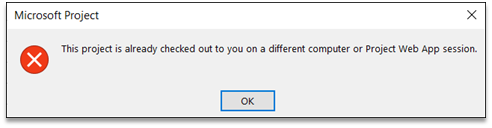
Have you ever encountered an error dialog like the one shown in the following illustration? If yes, what does this error dialog mean? It indicates that your project has become “stuck” in a checked-out state in either Project Online or Project Server. Until you “unstick” the “stuck” checked out project, you will not be able to edit the enterprise project. So, let’s explore three methods you can use to resolve this issue.
Method 1: Force Check In Stuck Projects with Project Web App
Complete the following steps to “unstick” the “stuck” checked out project using Project Web App:
- Launch your preferred web browser and navigate to the Home page of Project Web App.
- Click the “Projects” link to navigate to the Project Center Page.
- Click the “Projects” tab to expand the Projects ribbon.
- In the Navigate section of the ribbon, click the “Check In My Projects” button.
- On the Force Check-In Enterprise Objects page, select the checkbox for your “stuck” enterprise project.
- Click the “Check In” button and then confirm the action in the confirmation dialog.
- Try opening and checking out your Enterprise project again.
If this method does not work, and the enterprise project is still in a “stuck” checked out condition, then try the second method.
Method 2: Cleanup Cache in Microsoft Project
Complete the following steps to “unstick” the “stuck” checked out enterprise project using the Microsoft Project Professional desktop application:
- Launch Microsoft Project Professional and connect to Project Web App.
- Click the “File” tab and then click the “Options” button in the Backstage.
- In the Project Options dialog, click the “Save” tab.
- Click the “Cleanup Cache” button at the bottom of the Save page.
- In the Cleanup Cache dialog, click “Project Filter” pick list button and select the “Projects Checked Out to You” item.
- Select your “stuck” project and click the “Remove from Cache” button.
- Click the “Yes” button in the dialog to confirm the deletion.
- Try opening and checking out your enterprise project again.
If this method does not work, and the enterprise project is still in a “stuck” checked out condition, then try the third and final method.
Method 3: Rebuild Local Project Cache
Complete the following steps to “unstick” the “stuck” checked out project deleting and rebuilding the Local Project Cache:
- Close Microsoft Project Professional completely.
- Launch your File Explorer software.
- Click the “View” tab to display the View ribbon.
- Select the “Hidden Items” checkbox in the Show/Hide section of the ribbon, if not already selected.
- Navigate to: `C:\Users\YourUserID\AppData\Roaming\Microsoft\MS Project\VersionNumber\Cache`.
- Delete the contents of the “Cache” folder.
- Launch Microsoft Project, and it will rebuild the Local Project Cache.
- Open and check out the previously “stuck” Enterprise project.
Now you have three effective methods to resolve the issue of a “stuck” enterprise project. Remember to try these methods sequentially, and you may find that one of them does the trick for you.
If you have questions, please add them in the “Leave a Reply” section below. Or if you watched the video, add your questions or comments there. Please subscribe to my YouTube channel and leave “Likes” if you like the videos.
If you would like to have a formal class on using Microsoft Project, here is a link for my classes.

Dale Howard
Microsoft Project MVP 22 Years
About Me
Hello there Microsoft Project lovers! I’m Dale Howard and I’ve been a Microsoft Project MVP (Most Valuable Professional) for 22 years in a row. Pretty exciting, right!?
If you post a question about any of Microsoft’s PPM tools on the public message boards, look to see who the moderator or person that has answered the questions and you see, it’s frequently me answering your questions. Some people like to golf, I love Microsoft Project helping the community get to understand Microsoft Project much better.
I’ve been teaching students at all levels for over 20 years and have taught thousands of users around the world. I’ve written and co-authored 23 books on Microsoft Project, Project Online, and Project Server so if you’re like me and like to read over watching a video, you can Check Out My Books on Amazon.
For the people that like to watch videos, check out my YouTube channel. If you post a question in the comments, I’ll be happy to answer questions or create a new video to answer your question.
If you’ve got a question about Microsoft Project, Project Online or Project Server, check out some of these community post areas below where I am the moderator and have been answering questions on these message boards for over 20 years.
Microsoft Tech Community
Reddit Project Online Community
LinkedIn Project and Planner Group
My Students Include:




-
Two Methods for Creating a Master Project in Microsoft Project
 Efficiently manage multiple schedules. Compare the manual Insert Subproject method with the faster New Window feature in Microsoft Project.
 -
How to Print a Project Schedule in Microsoft Project
 Learn how to print a Microsoft Project schedule. Covers Gantt charts, print settings, PDF export, and one-page printing. By MVP Dale Howard.
 -
How to Set Task Dependencies in Microsoft Project
 Discover how to set task dependencies and learn about the various types, including adding Lag time and Lead time in Microsoft Project. Create a well-structured project schedule that accurately reflects task sequences with easy-to-follow steps and adaptability to suit your project’s unique requirements.
 -
Weekend Work Calendar Microsoft Project Guide
 Add Saturdays & create a weekend work calendar in Microsoft Project. Step-by-step expert tips for accurate scheduling.
 -
How to Create Multiple Project Timelines in Microsoft Project
 Want to learn how to create multiple project timelines for your Microsoft Project schedules? In this article, I will teach you two methods for creating multiple timelines.