
Updated for 2026: Step-by-step instructions and best practices for hiding tasks in MS Project.
Have you ever wanted to hide summary tasks in Microsoft Project? In MS Project, hiding tasks—especially summary tasks—can help simplify your Gantt Chart and keep your focus on the work that matters most.
This is a great trick for just showing the Gantt chart of what matters versus all of the layers that summary tasks introduce. Or maybe show or hide the outline numbers?
In this article I’ll show you how to show and Hide Summary tasks and as a Bonus, I’ll show you how to show and hide your Outline Numbers. So, let’s dive right in!

Watch the Step-by-Step Video
Prefer to follow along visually? This video demonstrates the exact steps you’ll learn below using Microsoft Project Desktop.
How to Hide Summary Tasks in MS Project
First of all, if you ever find yourself wanting to hide summary tasks in your project and focus solely on the detailed tasks and milestones, here’s what you do:
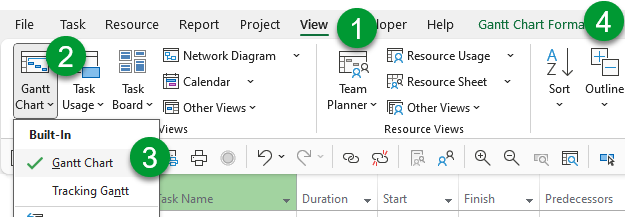
- Click the View tab on the ribbon.
- Click the drop-down arrow under the Gantt Chart icon
- Select the Gantt Chart view.
- Click the Gantt Chart Format tab to display the formatting options.
- On the far right end of the ribbon, DESELECT the Summary Tasks checkbox in the Show/Hide section.
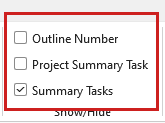
Voila! Now, your task list only includes detailed tasks and milestones. To bring back the hidden summary tasks, simply select the “Summary Tasks” checkbox again. Now, that wasn’t so hard, was it?
How to Display or Hide Outline Numbers in MS Project
Next, let’s talk about outline numbers. Keep in mind that Microsoft Project automatically calculates an Outline Number value for every task in your project, but those values are hidden by default. Sometimes, you might want to see those outline numbers. Here’s how you can do that:
- Make sure you are still in the Gantt Chart view.
- Click the Gantt Chart Format tab on the ribbon.
- In the Show/Hide section of the ribbon, SELECT the Outline Number checkbox.
Microsoft Project will immediately display the outline numbers for each task (for example, 1, 1.1, 1.1.1, and so on). If you decide you no longer need them, simply DESELECT the Outline Number checkbox to hide them again.
💡 Tip: Always make sure the Project Summary Task is enabled in your project. This ensures your project name, start date, finish date, and roll-up values are handled correctly. Too often, we see users create a “Task 1” that duplicates the project name instead of using the built-in Project Summary Task — which can lead to inaccurate rollups and reporting issues.
That’s it! Now you know how to display or hide summary tasks and outline numbers in Microsoft Project. If you have questions, please add them in the “Leave a Reply” section below. Or if you watched the video, add your questions or comments there. Please subscribe to my YouTube channel and leave “Likes” if you like the videos.
If you would like to have a formal class on using Microsoft Project, here is a link for my classes.





Leave a Reply